Creació de regles de filtrat de correu:

Gmail Guide – Horizontal
Navigation

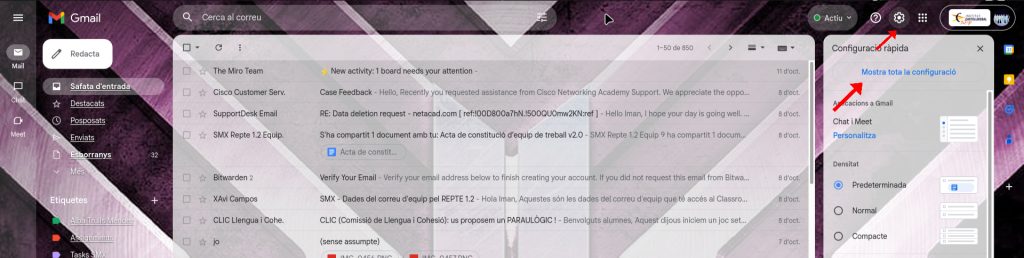
Accessing Settings

  • Open Gmail and click the Settings icon (the gear icon: ⚙️) located in the top-right corner.
  • From the dropdown menu, select “See all settings” to view the full configuration panel.
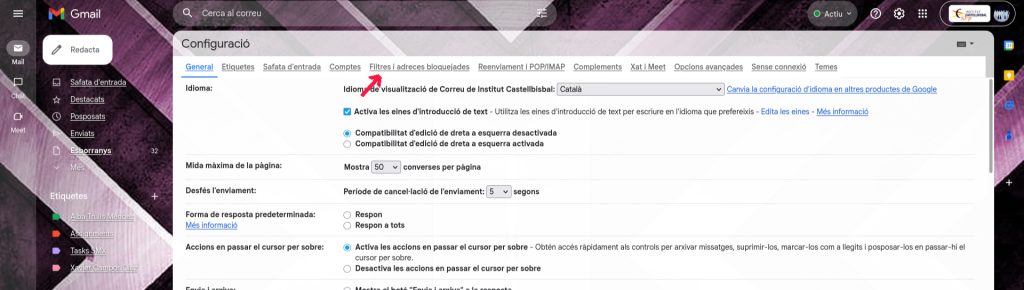
Configuration

Starting a New Filter

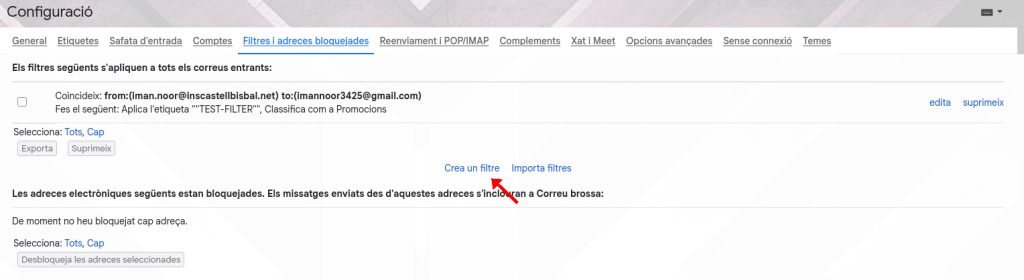
  • In the Settings menu, navigate to the “Filters and Blocked Addresses” tab.
  • Scroll down and click the link that says “Create a new filter.”
Step 03

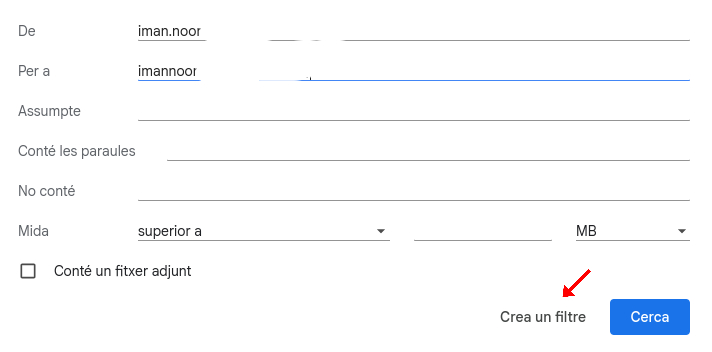
Defining the Criteria

  • From: imannoor
  • To: iman.noor
  • Click “Crea un filtre” (Create a filter) at the bottom to proceed to the next step.
Step 04

Specifying the Actions

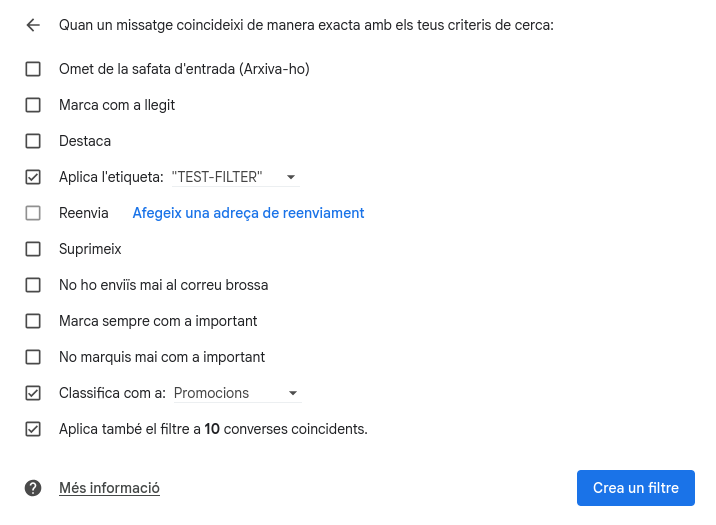
  • Choose the actions you want the filter to perform. We recommend using a label:
  • Check the box next to “Aplica l’etiqueta” (Apply the label).
  • Select or create a new label (e.g., “TEST-FILTER”).
  • Optional: Check “Classifica com a: Promocions” to move the email out of the Primary inbox.
Final Step

Finalizing the Filter

  • Click the blue button “Crea un filtre” (Create a filter) to save and activate the rule.
  • The new filter rule is now saved and listed in the “Filters and Blocked Addresses” tab, confirming the successful creation of the rule.

Take the next step to success

Many Web3 platforms are complex and have a steep learning curve, discouraging new users from entering the space.