Accessing Settings:
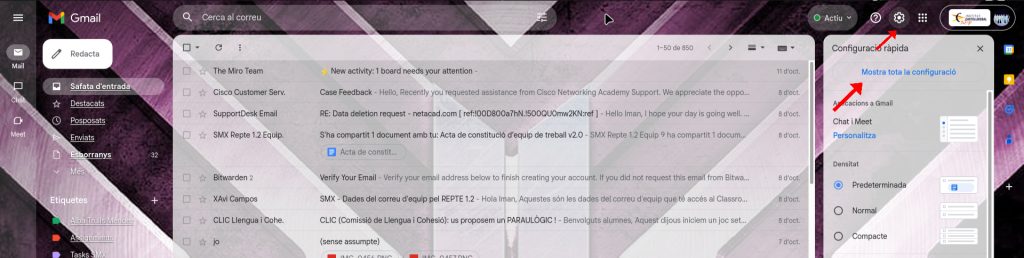
1- Open Gmail and click the Settings icon (the gear icon: ⚙) located in the top-right corner.
2- From the dropdown menu, select “See all settings” to view the full configuration panel.

Starting a New Filter:
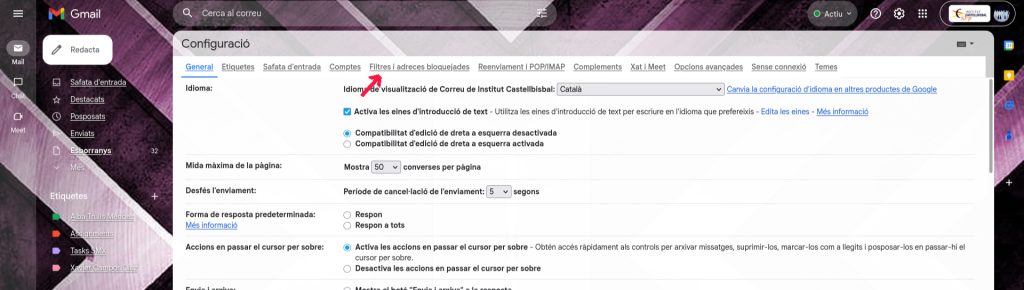
1- In the Settings menu, navigate to the “Filters and Blocked Addresses” tab.
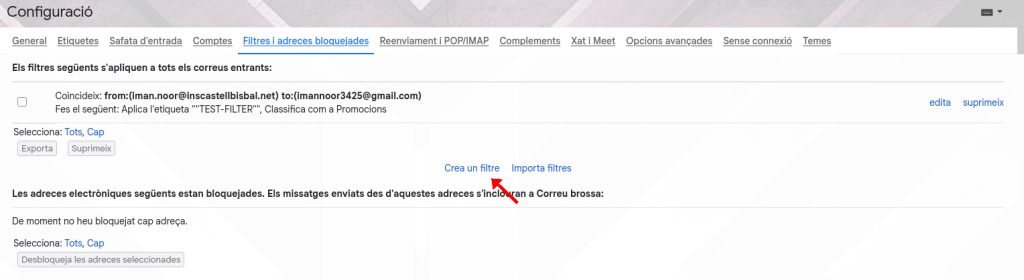
2- Scroll down and click the link that says “Create a new filter.”


Defining the Criteria:
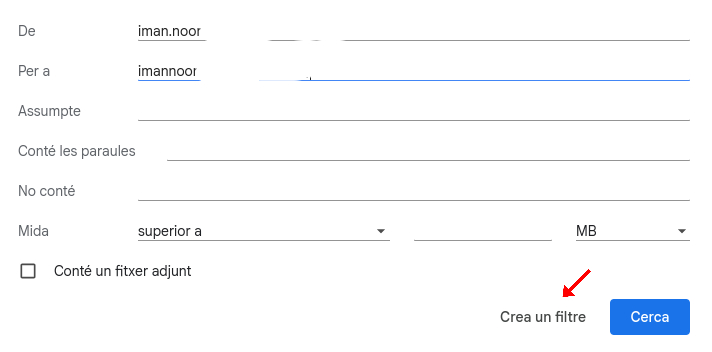
1- From: imannoor
2- To: iman.noor
Click “Crea un filtre” (Create a filter) at the bottom to proceed to the next step.

Specifying the Actions:
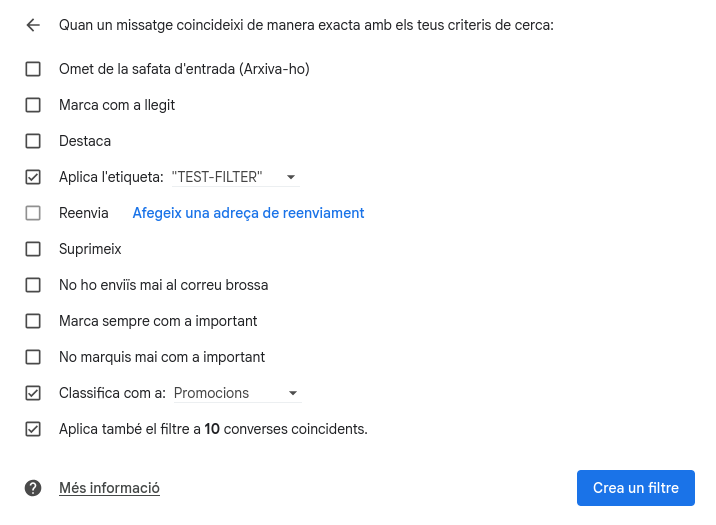
1- Choose the actions you want the filter to perform. For demonstration, we recommend using a label or categorization:
- Check the box next to “Aplica l’etiqueta: Triar una etiqueta…” (Apply the label: Choose label…).
- Select or create a new label (e.g., “TEST-FILTER”).
- Optional: Check “Classifica com a: Promocions” (Categorize as: Promotions) to move the email out of the Primary inbox.

Finalizing the Filter:
1- Click the blue button “Crea un filtre” (Create a filter) to save and activate the rule.
2- The new filter rule is now saved and listed in the “Filters and Blocked Addresses” tab, confirming the successful creation of the rule.