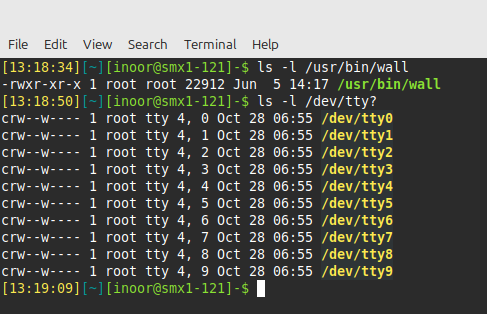
“I practiced all of these commands in the terminal to check that they are correct and see their results.”
Commands:
A command is a software program that, when executed on the CLI, performs an action on the computer.
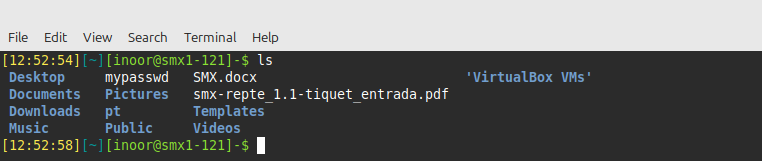
To execute a command, the first step is to type the name of the command. Click in the terminal on the right. Type lsand hit Enter. The result should resemble the example below:
1- Arguments:
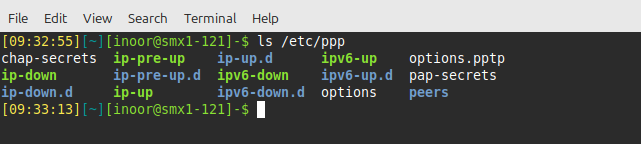
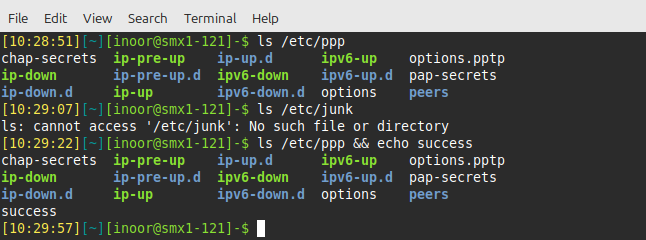
An argument can be used to specify something for the command to act upon. If the ls command is given the name of a directory as an argument, it lists the contents of that directory. In the following example, the /etc/ppp directory is used as an argument; the resulting output is a list of files contained in that directory:
2- Options:
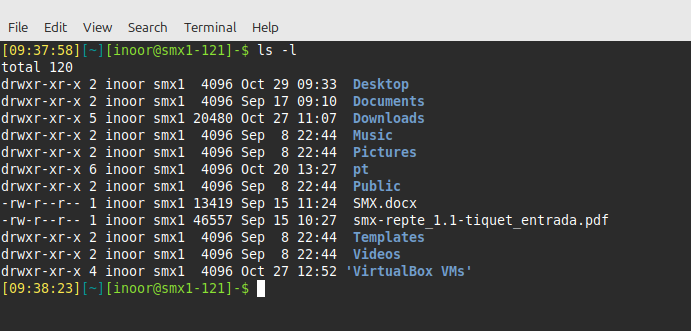
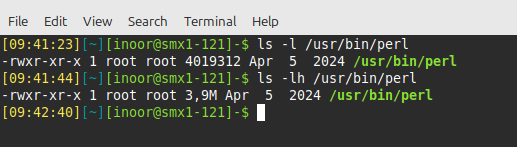
Options can be used with commands to expand or modify the way a command behaves. For example, using the -l option of the lscommand results in a long listing, providing additional information about the files that are listed, such as the permissions, the size of the file and other information:
By default the -l option of the ls command displays files sizes in bytes and if we put -h option is added the file sizes will be displayed in human-readable format:
3- History:
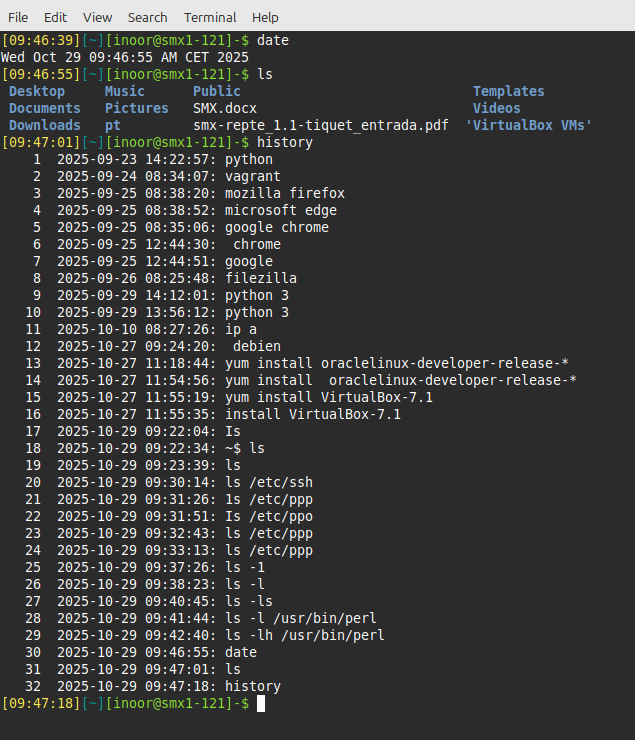
When a command is executed in the terminal, it is stored in a history list. This is designed to make it easy to execute the same command, later eliminating the need to retype the entire command.To view the history list of a terminal, use the history command:
4- External command:
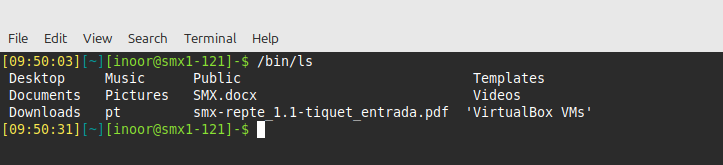
External command are binary executable stored in directories that are searched by the shell.External commands also be executed by typing the complete path to the command. For example, to execute the /bin/ls command:
5- Double Ampersand:
The double ampersand && acts as a logical “and”; if the first command is successful, then the second command will also run. If the first command fails, then the second command will not run.
In the following example, the first command succeeds because the /etc/ppp directory exists and is accessible while the second command fails because there is no/junk directory:To use the success or failure of the ls command in conjunction with&& execute commands like the following:
6- Viewing Man Pages:
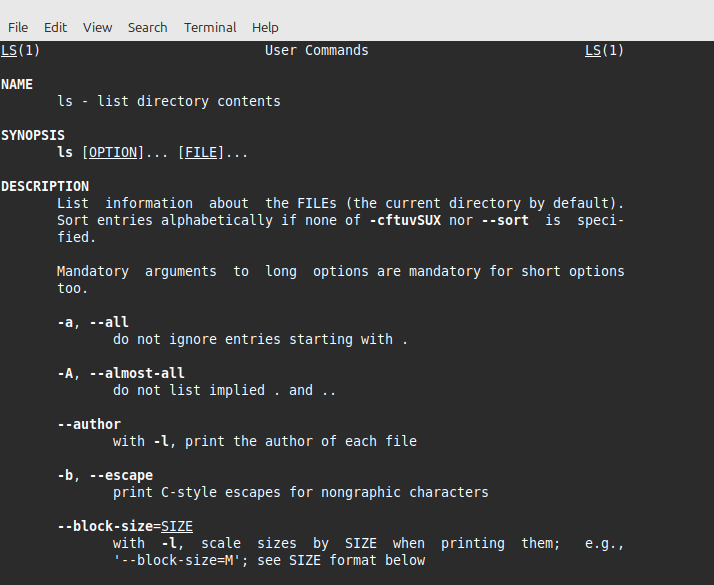
To view a man page for a command, use the man command:
7- Find Any File or Directory:
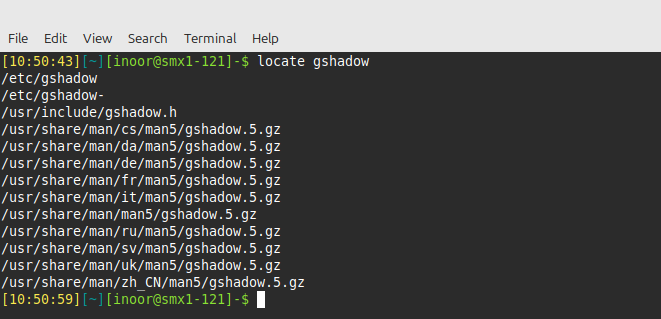
To find any file or directory, use the locate gshadow command. This command searches a database of all files and directories that were on the system when the database was created. Typically, the command to generate this database is run nightly.
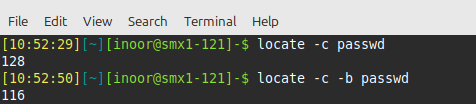
In many cases, it is helpful to start by finding out how many files match. Do this by using the -c option to the locate command.To limit the output produced by the locate command use the -b option. This option only includes listings that have the search term in the basename of the filename. The basename is the portion of the filename not including the directory names.
8- Viewing Info Documentation:
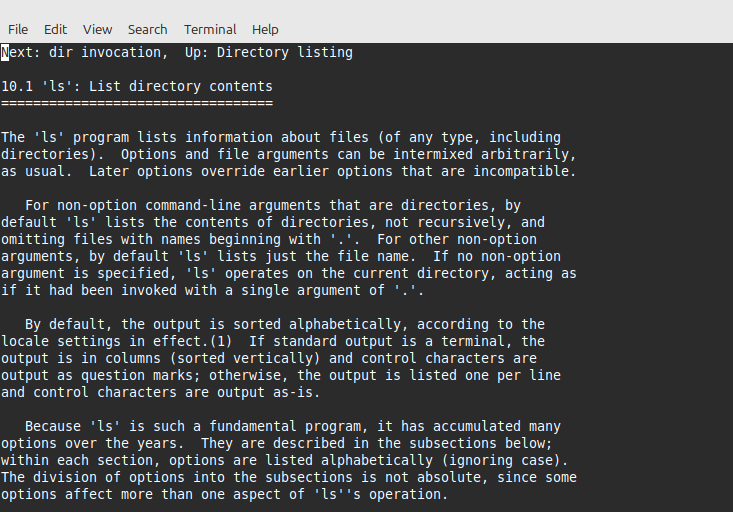
To display the info documentation for a command, use the info command.
9- Using the Help Option:
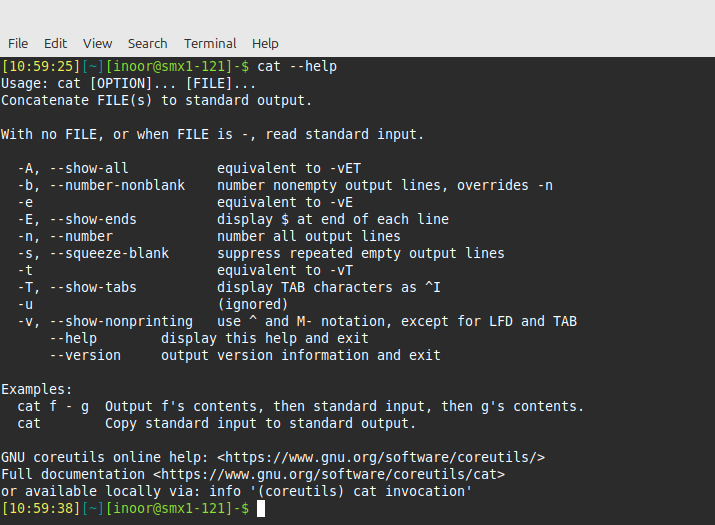
Many commands will provide basic information, by simply using the cat --help option to the command. This option is useful to learn the basic usage of a command quickly without leaving the command line
10- Listing Files in a Directory:
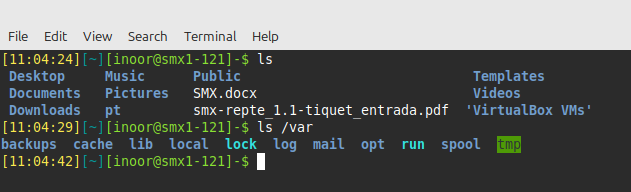
This ls command is used to display the contents of a directory and can provide detailed information about the files. By default, when it is used with no options or arguments, it lists the files in the current directory.The ls command can also be used to list the contents of any directory in the filesystem. Provide the path to the directory as an argument:
11- Listing Hidden Files:
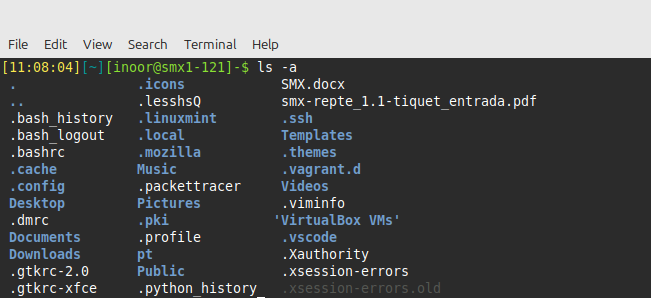
When the ls command is used to display the contents of a directory, not all files are shown automatically. The ls command omits hidden files by default. A hidden file is any file (or directory) that begins with a dot . character.
To display all files, including hidden files, use the-a option to the ls command:
12- Fields and Sort Options:
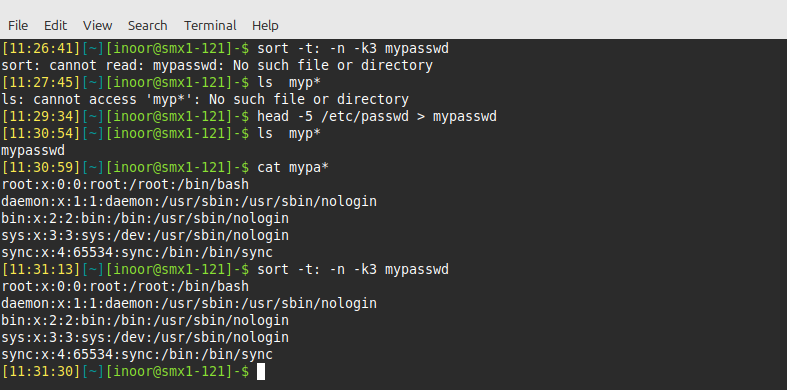
The sort command can rearrange the output based on the contents of one or more fields. Fields are determined by a field delimiter contained on each line. In computing, a delimiter is a character that separates a string of text or data; it defaults to white-space, like spaces or tabs.
13- Buses:
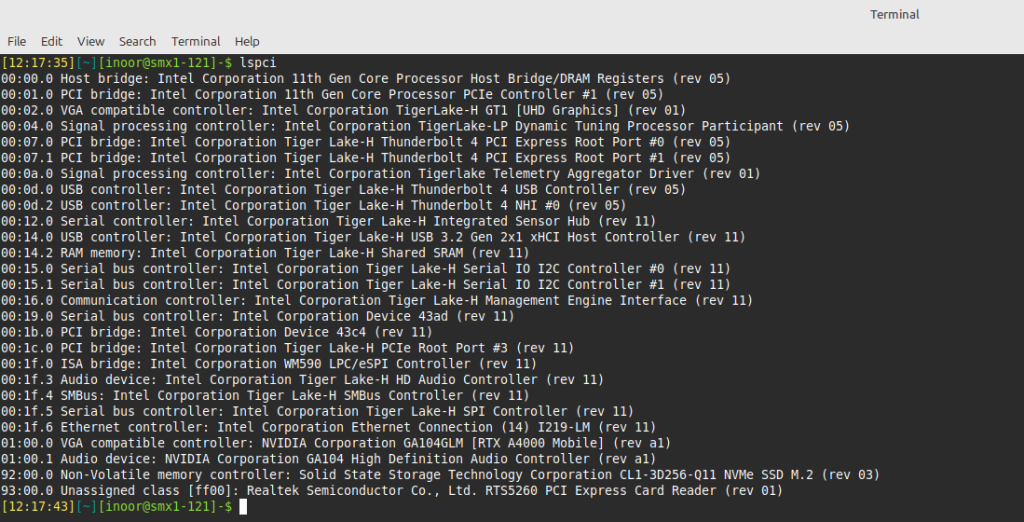
A bus is a high-speed connection that allows communication between computers or the components inside a computer.To view all of the devices connected by the PCI bus, the user can execute the lspci command:
14- Viewing Process Snapshot:
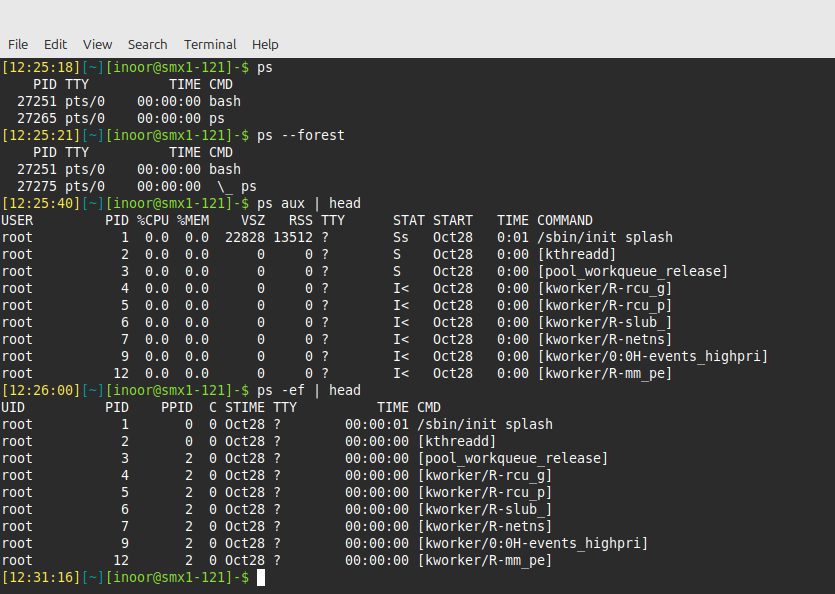
By default, the ps command only shows the current processes running in the current shell. Ironically, even though you are trying to obtain information about processes, theps command includes itself in the output.If you run ps with the option--forest, then, similar to the pstree command, it shows lines indicating the parent and child relationship.To be able to view all processes on the system execute either the ps aux command or theps -efcommand:
15- Viewing User Information:
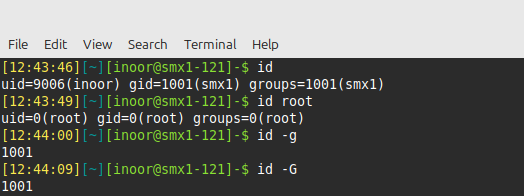
The id command is used to print user and group information for a specified user.When executed without an argument, the id command outputs information about the current user, allowing you to confirm your identity on the system.If the command is given a username as an argument, such as root, it displays information about the specified account.To print only the user’s primary group, use the -g option.The id command can also be used to verify the user’s secondary group memberships using the -G option. This will print all the groups that a user belongs to, both primary and secondary.
16- Viewing Current Users:
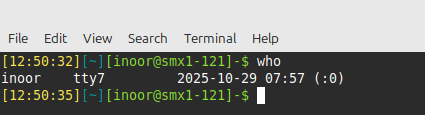
The who command displays a list of users who are currently logged into the system, where they are logged in from, and when they logged in.For exemple:
17- User Configuration Files:
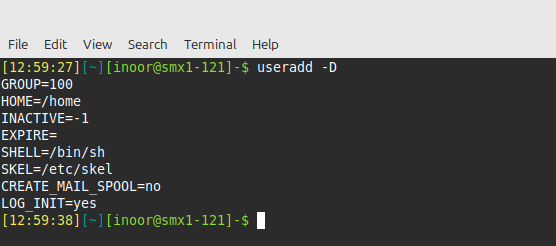
The -D option to the useradd command allows you to view or change some of the default values used by the useradd command. The values shown by useradd -D can also be viewed or updated by manipulating the /etc/default/useradd file:
18- Setuid:
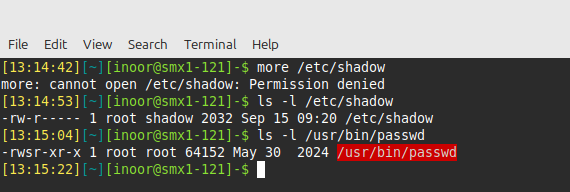
his permission is set on a handful of system utilities so that they can be run by normal users, but executed with the permissions of root, providing access to system files that the normal user doesn’t normally have access to.Consider the following scenario in which the userinoor attempts to view the contents of the /etc/shadow file.You can see this permission also set by running the ls -l command:
19- Setgid on Files:
The setgid permission on a file is very similar to setuid; it allows a user to run an executable binary file in a manner that provides them additional (temporary) group access.A good example of the setgid permission on an executable file is the /usr/bin/wall command. Notice the permissions for this file as well as the group owner.You can see that this file is setgid by the presence of the s in the group’s execute position. Due to this executable being owned by the tty group, when a user executes this command, the command is able to access files that are group owned by the tty group.
This access is important because the /usr/bin/wall command sends messages to terminals, which is accomplished by writing data to files like the following: